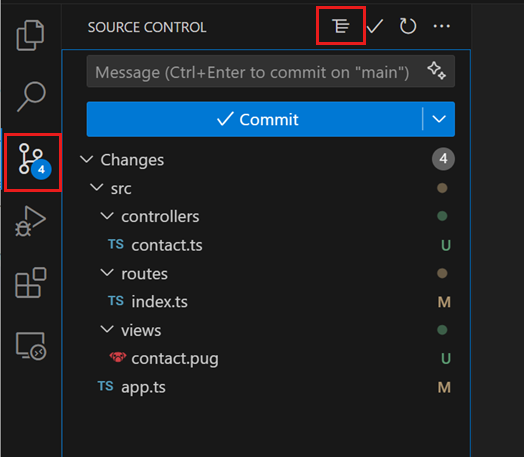
- Log in to GitHub in VSCode
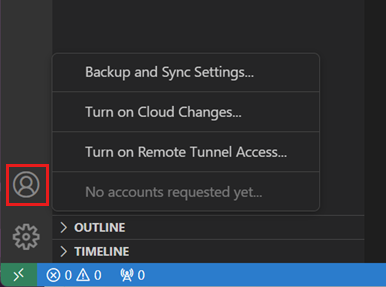
- Choose
Backup and sync settings - Click the
Sign inbutton that appears in the top menu - Choose
GitHubfrom the menu options - Authenticate in the browser when directed
- Open a PowerShell Terminal

- Apply the following commands, replacing
your@school.emailwith your GitHub email address and replacingusernamewith your GitHub username.
git config --global user.email "your@school.email"
git config --global user.name "username"- Once you have followed these steps, you can commit, push, and pull from VSCode using the 'Source Control' menu. On your first commit, you may need to authenticate through the browser again.