Wonderfully looking WPF UI with a professional Visual Studio 2022 style and tons of indispensable controls.
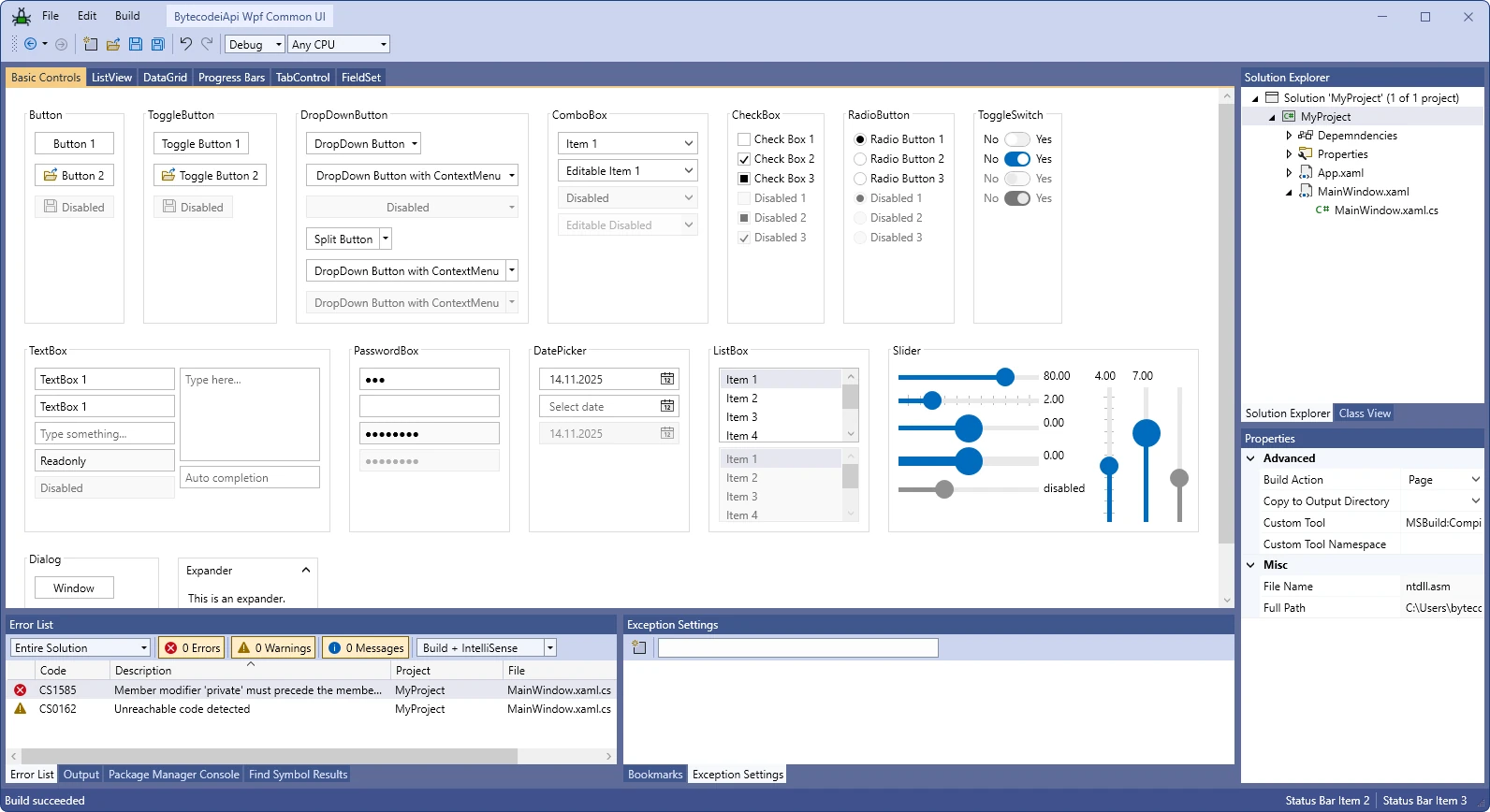
This example app can be downloaded here here.
The BytecodeApi CommonUI provides both a professional and recognizable look for your WPF applications, as well as a wide range of controls.
Standard controls are retemplated and extended with additional functionality:
- Window
- ToolBar
- ToolBarTray
- TabControl
- Button
- ToggleButton
- TextBox
- PasswordBox
- ComboBox
- DatePicker
- CheckBox
- RadioButton
- ProgressBar
- ListBox
- ListView
- TreeView
- DataGrid
- GroupBox
- Expander
- GridSplitter
New controls that you will miss in vanilla WPF:
- ApplicationWindow
- ApplicationTabControl
- DropDownButton
- SplitButton
- FlatButton
- ToggleSwitch
- PropertyGrid
- BusyIndicator
- FieldSet
- SvgImage
Install the BytecodeApi.Wpf.Cui nuget package. Then start with the cui:UiApplicationWindow. This is your main application window with a beautiful window chrome.
<cui:UiApplicationWindow
	x:Class="MyApp.MainWindow"
	x:Name="mainWindow"
	xmlns="http://schemas.microsoft.com/winfx/2006/xaml/presentation"
	xmlns:x="http://schemas.microsoft.com/winfx/2006/xaml"
	xmlns:local="clr-namespace:MyApp"
	xmlns:ui="http://schemas.bytecode77.com/2023/xaml/presentation"
	xmlns:cui="http://schemas.bytecode77.com/2025/xaml/cui"
	DataContext="{Binding ViewModel, ElementName=mainWindow}"
	Title="My BytecodeAPI CUI App" Width="1700" Height="900" ResizeMode="CanResizeWithGrip">
	<cui:UiApplicationWindow.IconControl>
		<Image Source="/MyApp;component/Resources/Images/WindowLogo.png" Width="20" Height="20" />
	</cui:UiApplicationWindow.IconControl>
	<cui:UiApplicationWindow.Menu>
		<Menu>
			...
		</Menu>
	</cui:UiApplicationWindow.Menu>
	<cui:UiApplicationWindow.ToolBarTray>
		<cui:UiToolBarTray>
			<cui:UiToolBar>
				...
			</cui:UiToolBar>
		</cui:UiToolBarTray>
	</cui:UiApplicationWindow.ToolBarTray>
	<cui:UiApplicationWindow.StatusBar>
		<StatusBar>
			<StatusBarItem>
				...
			</StatusBarItem>
		</StatusBar>
	</cui:UiApplicationWindow.StatusBar>
	<Grid>
		...
	</Grid>
</cui:UiApplicationWindow>
Browse the cui namespace to access the Common UI controls, like cui:UiButton, cui:UiTextBox, cui:UiComboBox, etc.
The cui:UiSvgImage control can be used to display SVG images.
<cui:UiSvgImage Source="/MyApp;component/Resources/Save.svg" Stretch="None" />
When setting InheritForeground to true, the SVG strokes and fills use TextElement.Foreground as color. This is used on single-colored icons.
BytecodeApi Common UI originated as an internal framework for bytecode77 projects. It is not an exhaustive WPF framework, but focuses on providing a solid foundation with essential controls that WPF lacks, and a professional look that instantly boosts perception of your application.
Some specifics to consider:
- There is only one theme: VS2022
- The docking controls are only visuals. A full-blown docking engine is not part of the framework
- Certain edge cases may not be honored
- change: Targeting .NET 10.0
- change:
SystemParametersExmethods changed to extension members ofSystemParameters
- new:
UiSlidercontrol - bugfix: Changed
UiGroupBox.*ContentAlignmentproperties toCenter
- new:
UiWindow.TitleBarBrushproperty - bugfix:
UiWindowdid not honorBorderBrushproperty - change:
UiGridViewColumn.IsColumnVisiblewas renamed toIsColumnVisible
- Initial release