Regular Expressions (Regexes) can be useful for:
- Extracting Data
- Cleaning Dirty Data
- Reformatting Data
- Lots of other programming tasks...
They are supported in most programming languages and text editors. They are used extensively in the command line as well.
A tutorial we will follow together.
Tutorial Recap
- Lets recap the lesson by reviewing the "cheat sheet"
Concepts Recap
- Special characters have to be escaped with a
\ - Using
^at the start and$at the end matches the start and end of a line - You can capture parts of a pattern in a group using parentheses
() - The
|character is used to indicate "OR" - Inside square brackets the
^means "NOT" for example[^b]matches any character that is not "b" - Quantifiers like
*,+,{4}, or{1,4}can help capture repeated patterns a|b|c|d|e|fis equivalent to[abcdef]which is equivalent to[a-f]. All three of these patterns will capture one letter that is a,b,c,d,e, or f.?can be used to make part of a pattern optional to match
One additional concept we may need
^(?!http).*will match all lines that don't begin withhttp. Just know this pattern and know that its called a "negative lookahead". I'm not going to explain it, but you'll see what it does in the exercises below.
Make sure to press "fork regex" to get your own copy before you mess around with it.

Pre-Loaded Data: https://regex101.com/r/4jkeQ9/4
- Match words that start with "a" and end with "d" (will match 5 words)
- Match words that start with "A" or "a" and end with "d" (will match 7 words)
- Match words that end with "an" (will match 13 words)
- Match all words containing "ll"
- Match all words like "yo-yo" that are split with a hyphen (will match 3 words)
- Match words that are split with a hypthen, but capture everything to the left of the hyphen in one group and everything to the right of the hyphen in another.
Bonus:
- Match all words that are split with a hyphen where the contents of the left side are the same as the contents of the right side. (hint: you'll have to use a backreference, these are listed in the "cheat sheet").
Pre-Loaded Data: https://regex101.com/r/2qQTvP/3
- Match only URLs that start with
http://orhttps:// - Match incomplete urls (the opposite of number 1)
- hint: Try this regex first
^(?!www).*
- hint: Try this regex first
- Match URLs that begin with
www - Match URLs that don't begin with either
http://,https://, orwww - Together: Lets clean these URLS using find and replace in sublime text
Pre-Loaded Data: https://regex101.com/r/RWujRv/3
- Match just the state name
- Match only the digits in the phone number
- Match the first and last names in two separate groups
- Match each column in a separate group
- Match the phone number in three groups
- Together: standardize phone numbers into the following format
(XXX)-XXX-XXXXin sublime text - Together: switch first and last name columns and make the first letter of each upper case in sublime text
- Together: standardize phone numbers into the following format
- non-capturing groups
- named groups
- lookahead and lookbehind
- backreference
- Creating Multi-line cursor
option+ click and drag- Alternatively select all with
Cmd ⌘+a, thenCmd ⌘+Shift+lto create a multiline cursor at the end of each line
- Navigate with multiline cursor
- ← and → arrow keys
Cmd ⌘+←andCmd ⌘+→to go to start or end of each lineoption+←andoption+→to go to previous or next delimiter
-
Regular Expressions Find and Replace (
Cmd ⌘+option+f)

We're going to grab some data from here: http://www.finra.org/industry/disciplinary-actions. Through some simple find and repalce statements using regex, we will be able to extract structured data from this otherwise unstructured format.
I've already downloaded the pdf and saved it as a text file, so you can skip straight to opening up the finra.txt file in Sublime Text.
-
Search for exactly this text (remember to escape all the special characters)
Cadaret, Grant & Co., Inc. (CRD #10641, Syracuse, New York)
Answer:
Simply searching for "Cadaret, Grant & Co., Inc. (CRD #10641, Syracuse, New York)" won't work unless you have regex search mode (screenshot above) turned off. Why? Becuase you you are looking for literal parentheses, which is a special character in regex. So first turn on regex search, then escape the special characters. If you search for
Cadaret, Grant & Co., Inc. \(CRD #10641, Syracuse, New York\)with the parentheses escaped, you should find this one entry. -
Modify the search for that pattern above and capture into groups name of the company, the CRD number, the state, and the city in separate groups.
Answer:
Here is one possible pattern you could end up with (there are others)
^(.*) \(CRD #(\d+), (.+), (.+)\)In order to write this regex, I started with the regex search from the previous part,
Cadaret, Grant & Co., Inc. \(CRD #10641, Syracuse, New York\)and then started replacing each section with wildcards until I got to^(.*) \(CRD #(\d+), (.+), (.+)\).Note: this will not capture items that are split accross multiple lines. It is possible to do that but for the sake of simplicity in this lesson we will ignore those datapoints that match this pattern but are split accross two lines. We will also for the sake of time ignore any lines where the pattern is not the first item in the line.
-
Remove all lines that don't match that pattern
Answer:
We start with the regex above
^(.*) \(CRD #(\d+), (.+), (.+)\), and we'll add a .* at the end to capture the rest of the line.^(.*) \(CRD #(\d+), (.+), (.+)\).*will now capture the whole line containing the data. However we want to match lines that don't match that pattern. For this we have to surround the regex with a "not"^(?!^(.*) \(CRD #(\d+), (.+), (.+)\)).*will then capture all lines that do not start with that pattern. Find and replace anything that matches that pattern with a blank. We have now removed all rows that don't contain the data we're looking for.
-
Remove any stray characters that remain
Answer:
Notice sometimes this stray character appears:
I'm going to copy and paste that into the "find" textbox and replace it with a blank.
-
Remove the empty lines using regex. (hint
\nwill match a new line character)Answer: Replace
\n+(one or more new lines) with\n(one new line) -
Use regexes to turn the remaining lines into comma separated data. You want it to look something like this
"Cadaret, Grant & Co., Inc.",10641,"Syracuse","New York"
"Ameritas Investment Corp.",14869,"Lincoln","Nebraska"
"Cantor Fitzgerald & Co.",134,"New York","New York"
"Citadel Securities LLC",116797,"Chicago","Illinois"
"Citizens Securities, Inc.",39550,"Dedham","Massachusetts"
Answer:
Lets start with the pattern that matches the data we want
^(.*) \(CRD #(\d+), (.+), (.+)\), then add .* to capture all the rest of the junk in that line.Find
^(.*) \(CRD #(\d+), (.+), (.+)\).*now each piece of "data" we want is in a capturing group. Replace the above with the capturing groups. I'm going to put quotations around the text values but not number values because that is the way excel likes it:
Replace
"\1",\2,"\3","\4"Once your data looks like the screenshot above, go to "file > save as" and save the file as "finra.csv" and open it in excel.

Bonus:
- How would you do this so that we don't lose the items that are split across two lines?
Use regular expressions to extract table S-10 of this PDF https://obamawhitehouse.archives.gov/sites/default/files/omb/budget/fy2017/assets/17msr.pdf

We want to conver this data into a CSV file. CSV stands for "Comma Separated Values" and can be opened in excel. These files have two rules, (1) commas separate table items (unless that comma is contained within quotes) (2) new line separates new rows.
-
Copy and paste the table into sublime text
-
Remove un-necessary rows
Answer:
National Aeronautics & Space Administration and Corporation for National & Community Service are split both split into two rows.
The pattern to match those two rows goes like this:
[^�]+captures one or more items that are not �([^�]+)\ncaptures one or more items that are not � followed by a new line^([^�]+)\ncaptures the start of a line, then one or more items that are not � followed by a new line.So the answer is to find
^([^�]+)\nand replace it with
\1note that is
\1followed by a space -
Remove all the commas that separate digits from one another. (these are the commas within numbers, for example those found in that final subtotal row).
Answer:
Find
(\d),(\d)Replace
\1\2 -
Put the agency name in quotes and remove the junk that separates that from the data
Answer:
Find
(.+) �+Replace
"\1" -
Separate the data with commas instead of spaces
Answer:
Find
(["\d\.\–]) (["\d\.\–])Replace
\1,\2Also put quotes around "Subtotal, Base Discretionary Funding"
-
Save and open in excel!
Answer
Notice the "m dash"
–in all the negative numbers appears odd in excel, find and replace that with an "n dash"-in sublime and reopen in excel to make it appear properly. (or just find and replace it in excel)
Lets see if you can extract the value of each gift:
This one you can just watch. I'll demonstrate how regexes can be useful in the command line. Lets look at house expenditure data hosted by propublica.
https://projects.propublica.org/represent/expenditures
This will show me that data in the command line
curl https://pp-projects-static.s3.amazonaws.com/congress/staffers/2016Q4-house-disburse-detail.csv
Here are the first few lines
curl https://pp-projects-static.s3.amazonaws.com/congress/staffers/2016Q4-house-disburse-detail.csv | head
Here are all the lines that don't start with a comma
curl https://pp-projects-static.s3.amazonaws.com/congress/staffers/2016Q4-house-disburse-detail.csv | grep -e "^[^\,]"
This command matches two regexes.
(1) All the rows that don't start with a comma and contain "FEDERAL EXPRESS CORPORATION" ^[^\,].*FEDERAL EXPRESS CORPORATION
(2) The header of the document (contains "BIOGUIDE_ID) BIOGUIDE_ID
curl https://pp-projects-static.s3.amazonaws.com/congress/staffers/2016Q4-house-disburse-detail.csv | grep -e "^[^\,].*FEDERAL EXPRESS CORPORATION" -e "BIOGUIDE_ID"
I can then pipe that whole command to csvstat and get a summary of expenditures to FedEx from congressional offices. (you'll need CSVkit to use the csvstat command, here are instructions on installing it.
curl https://pp-projects-static.s3.amazonaws.com/congress/staffers/2016Q4-house-disburse-detail.csv | grep -e "^[^\,].*FEDERAL EXPRESS CORPORATION" -e "BIOGUIDE_ID" | csvstat
Bonus: Here is a summary of Paul Ryan's expenses
curl https://pp-projects-static.s3.amazonaws.com/congress/staffers/2016Q4-house-disburse-detail.csv | grep -e "^[^\,].*HON\. PAUL D\. RYAN" -e "BIOGUIDE_ID" | csvstat
There are lots of other uses for regular expressions. If there is a pattern, it can probably be matched! If you don't know how to do it, you may have to use one of the techniques we didn't cover like lookaheads or lookbehinds. Feel free to contact me for regex help, and please let me know if you use what you learned here. Hofully you can now identify situations in your work where regular expressions may be the answer.
- Useful Resources
- Reinforce learning with these exercises
- Advaned, but comprehensive tutorial & reference
- Regex Reference Sheets
- Regex Puzzles
- Regex Search Chrome Extension
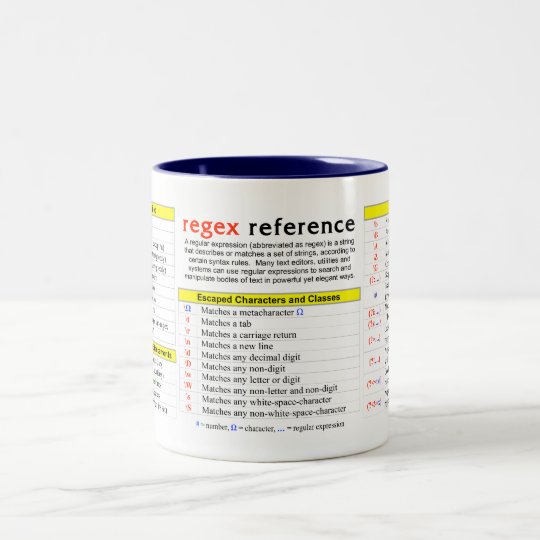
- Regex Mug