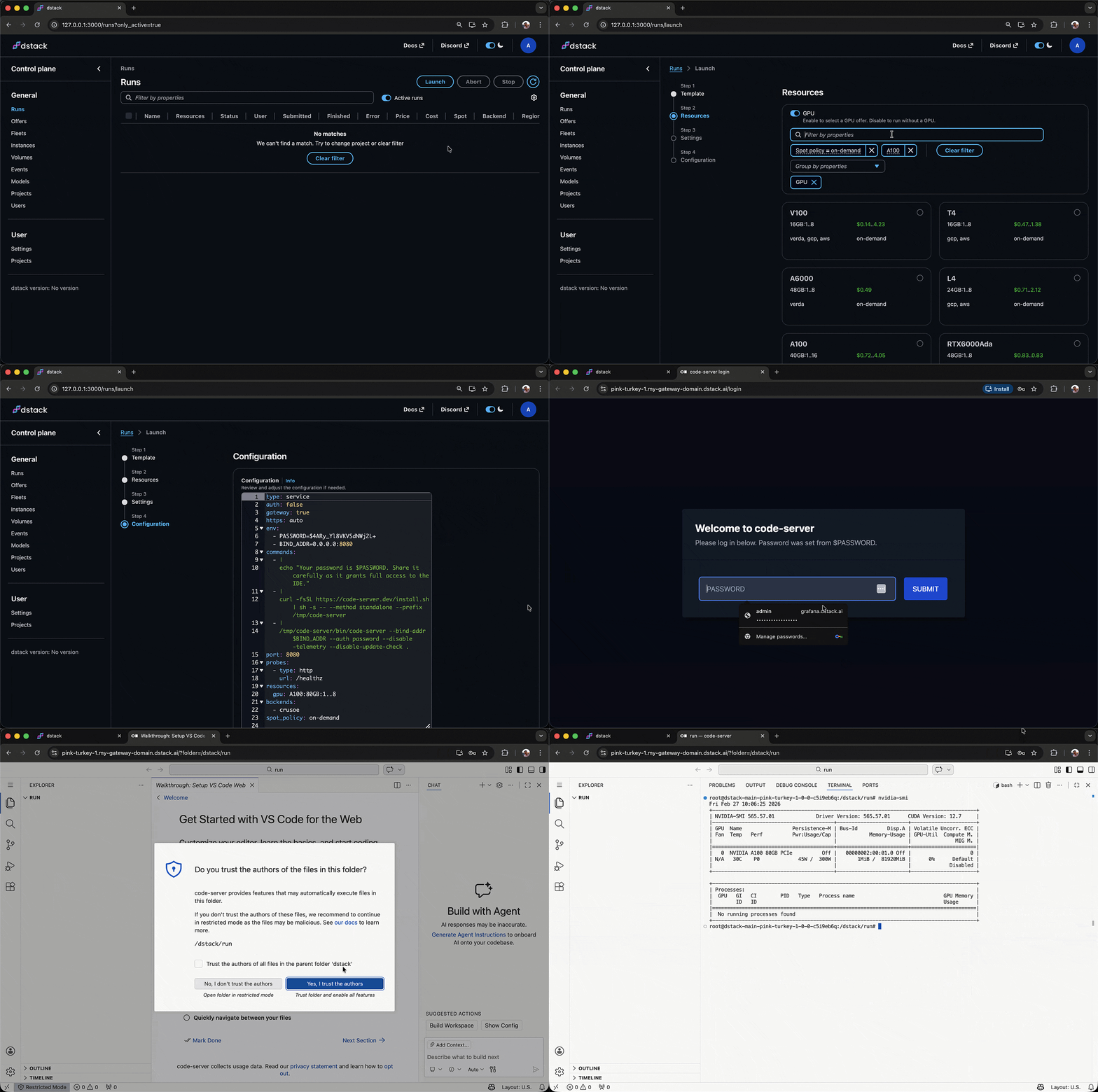
Templates let users create dstack runs from the UI via a launch wizard — select a template,
pick GPU resources, adjust settings, and review the final configuration.
While dstack is typically used via the CLI, templates make it easy to launch runs
directly from the UI through a guided experience.
Note
Templates require dstack server version 0.20.12 or newer.
To enable the launch wizard, point the server to a Git repository containing templates
via the DSTACK_SERVER_TEMPLATES_REPO environment variable:
$ DSTACK_SERVER_TEMPLATES_REPO=https://github.com/dstackai/dstack-templates dstack serverOnce configured, the Launch button on the Runs page will show the available templates. Select a template, configure the parameters, and click Apply to create the run.
Note
The launch wizard is an experimental feature. Currently, templates are configured per server. Per-project templates configuration is coming soon.
To define your own templates, fork this repository or create a new one following the same layout.
Templates are YAML files placed under the .dstack/templates/ directory in the repository.
Each file defines a single template.
Each template file has the following top-level fields:
type— alwaystemplatename— unique identifier within the repositorytitle— human-readable label shown in the UIdescription— short description shown in the UIparameters— list of configurable parametersconfiguration— a standarddstackrun configuration (dev-environment,service, ortask)
A simple template that launches a dev environment accessible from a desktop IDE:
type: template
name: desktop-ide

title: Desktop IDE
description: Access the instance from your desktop VS Code, Cursor, or Windsurf.

parameters:
  - type: name
  - type: ide
  - type: resources
  - type: python_or_docker
  - type: repo
  - type: working_dir

configuration:
type: dev-environmentA template that deploys in-browser VS Code as a service:
type: template
name: in-browser-ide

title: In-browser IDE
description: Access the instance using VS Code in the browser.

parameters:
  - type: name
  - type: resources
  - type: python_or_docker
  - type: repo
  - type: working_dir

  - type: env
    title: Password
    name: PASSWORD
    value: $random-password

configuration:
  type: service

  env:
    - BIND_ADDR=0.0.0.0:8080
  commands:
    - |
      echo "Your password is $PASSWORD. Share it carefully as it grants full access to the IDE."
    - |
      curl -fsSL https://code-server.dev/install.sh | sh -s -- --method standalone --prefix /tmp/code-server
    - |
      /tmp/code-server/bin/code-server --bind-addr $BIND_ADDR --auth password --disable-telemetry --disable-update-check .
  port: 8080

  probes:
    - type: http
      url: /healthz

  gateway: true
  https: auto
  auth: false
The env parameter with value: $random-password tells the UI to auto-generate a random
password and pass it to the run configuration.
Parameters are special constructs supported by the dstack UI. Each parameter type maps to
a dedicated UI widget that provides context-aware configuration (e.g. showing available GPU offers,
listing Git repos, etc.).
| Type | Description |
|---|---|
name |
Configure an optional run name. |
ide |
Pick a desktop IDE (VS Code, Cursor, Windsurf). |
resources |
Configure GPU/CPU resources based on available offers in the project. |
python_or_docker |
Select a Python version (to use the dstack base image) or specify a Docker image. |
repo |
Configure a Git repo to clone into the run. |
working_dir |
Configure a working directory. |
env |
Define a custom environment variable. Supports title, name, and value properties. The special value $random-password tells the UI to auto-generate a random password. |
- Per-project templates configuration (currently templates are configured per server)
- Check the dstack docs
- Learn about dev environments, tasks, and services
- Browse examples