Mastering git flow was a key problem we had to manage during our Week 1 project.
So that we never forget, we've distilled this quick guide from our README for that project.
- The quote blocks represent activity outside of the command line (probably on our project on VS Code or Atom, or on the GitHub repo itself)
- The commands are written in their fullest terms for the sake of clarity, but some handy shortcuts are detailed at the bottom of this document
- The below commands would in practice be interspersed with regular invocations of
git status, to get a handle on the position of the HEAD, relationship to most recent origin/master pull, the state of the working directory versus the staging area, etc.
If you haven't already cloned the repository on which you'll be working, navigate to the directory in which you'd like to clone the project and run:
git clone git@github.com:fac18/repo-slug.git directory-nameOr if you haven't got SSH set up:
git clone https://github.com/repo-slug.git directory-nameHere directory-name specifies the name of the folder in which the repo is installed. If left off then the directory will default to the name of the repo (usually recommended).
The repo-slug part here will usually be in the form username/repo-name for a repo owned by a user, or organisation/repo-name for one owned by an organisation.
For example, the slug for the project referenced above is fac18/week1-BDIM-dynamyk-site.
Now assuming you've git clone'd the repo, let's imagine we're going to comb through our HTML and add ARIA labels as appropriate. The full cycle of commands might look as follows:
cd ~/path-to-working-directory
git checkout master
git pull origin master
git branch aria-labels
git checkout aria-labels
work through index.html file and add any ARIA labels that make sense
git add .
git commit -m 'description of changes made'
git checkout master
git pull origin master
git checkout aria-labels
git merge master
resolve conflicts resulting from the merge, if any
git commit -m 'resolved conflicts from merge'
git push origin aria-labels
make pull request on GitHub comparing
masterbranch witharia-labelbranch
wait for team to approve (or request amendments to and resolve) the pull request
git checkout master
git pull origin master
Now the changes involved in your new branch aria-label have been pulled into the master branch, and your spangly new accessibility feature is available to everyone to pull to their local working directories and merge with whatever branches they may be working on.
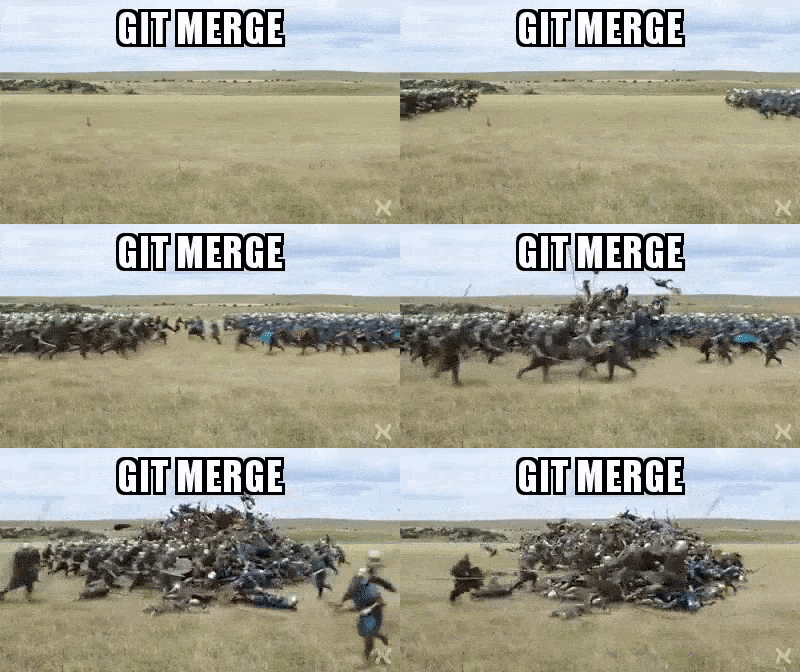
The benefits of running a tight ship with git flow are numerous, most obviously not having to spend your entire evening on a nasty code merge...
The number of keypresses in a git flow cycle can be reduced with a couple of shortcuts.
For example, in general git pull origin master can be reduced to just git pull.
This will pull the branch you're currently sitting on (which should be the master) from its default remote (usually origin).
Furthermore, we can create a new branch and switch to it in one line by writing:
git checkout -b new-branch