








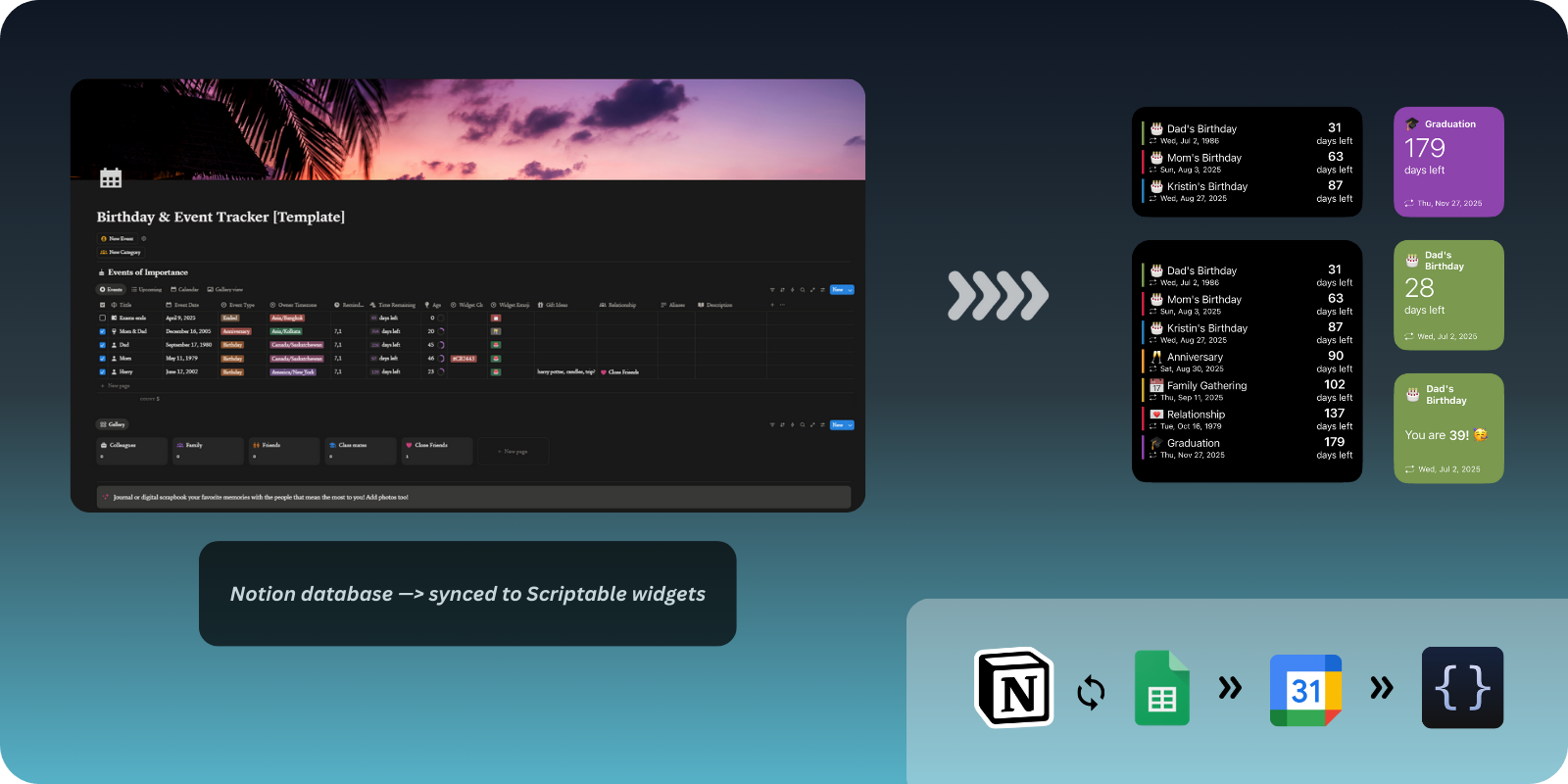
A Scriptable widget powered by a Notion → Google Sheets → Google Calendar pipeline, with a lightweight JSON feed for the widget UI.
- What you get
- Who this is
- Quick start
- Widget size behavior
- Data flow (overview)
- Notion template & dashboard
- Troubleshooting
- Want a Simpler Notion-Only Version?
- Small widget: next upcoming event with date + countdown
- Medium widget: top 3 upcoming events
- Large widget: top 6 upcoming events
- iOS notifications handled by Google Calendar and/or Notion Calendar
- Note: if you don’t want notifications from multiple apps, pick a single source. You can keep Google Calendar connected for syncing, but turn off its notifications in the Google Calendar settings to avoid duplicate alerts. If you prefer Notion Calendar or iOS Calendar alerts, leave those on and disable Google Calendar notifications.
- Developers: want full automation and timezone-aware reminders
- Non‑developers: can edit Notion and let automation handle the rest
You need a Notion database synced into Google Sheets. Required columns in the sheet tab:
Don’t stress about building it from scratch — just duplicate the provided Notion template and you’re ready to go.
If you don’t already have a Google Sheet, create one (e.g., Countdowns) and add a tab named Main. You can use a different tab name, but the scripts expect Main unless you change the config.
- Event Name
- Event Date
- Widget Emoji
- Widget Clr
Use the Addsync extension to connect Notion and Google Sheets.
After selecting your data source and destination, make sure you choose the correct options in Addsync (e.g., enable/disable sync back based on your preference).
Mapping (fields to select)
- Event Name
- Event Date
- Event Type
- Owner Timezone
- All Day?
- Exact Local Time
- Relative Reminders
- Notes
- Active?
- Widget Emoji
- Widget Clr
One‑way sync (Notion → Sheets)
- Create a new Addsync connection.
- Choose your Notion database as the source.
- Choose your Google Sheet tab as the destination.
- Disable “Sync back” (or equivalent) so edits in Sheets don’t write to Notion.
Two‑way sync (Notion ↔ Sheets)
- Create a new Addsync connection.
- Choose the Notion database and Google Sheet tab.
- Enable “Sync back” so changes in Sheets can update Notion.
- Map fields so all required columns stay aligned.
Tip: Start with one‑way sync for stability, then enable two‑way once your schema is final.
- Open your Google Sheet → Extensions → Apps Script.
- Paste Code.gs (JSON feed) and the event sync scripts:
- event_sync.gs
- build_events_only.gs
- build_reminders_only.gs
- cleanup_events.gs (optional)
- Deploy Code.gs as a Web App (Execute as: Me, Access: Anyone with the link).
- Copy the Web App URL.
In your Scriptable script:
- Set
SHEET_API_URLto the Web App URL.- Get it from Apps Script → Deploy → Manage deployments → Web app URL.
- Keep
HARDCODED_SHEETandHARDCODED_SPREADSHEET_IDas needed.- Spreadsheet ID: from the Sheets URL between
/d/and/edit. - Sheet ID (gid): from the Sheets URL after
gid=.
- Spreadsheet ID: from the Sheets URL between
- Add a Scriptable widget to the Home Screen.
- Choose this script.
- Pick Small, Medium, or Large.
- Small: 1 upcoming event
- Medium: 3 upcoming events
- Large: 6 upcoming events
The widget sorts by next upcoming date and shows countdowns.
Notion → Google Sheets → Apps Script → Google Calendar → Scriptable Widget
- Notion is the source of truth
- Sheets holds data synced from Notion
- Apps Script creates calendar events/reminders and serves JSON
- Scriptable reads JSON and renders the widget
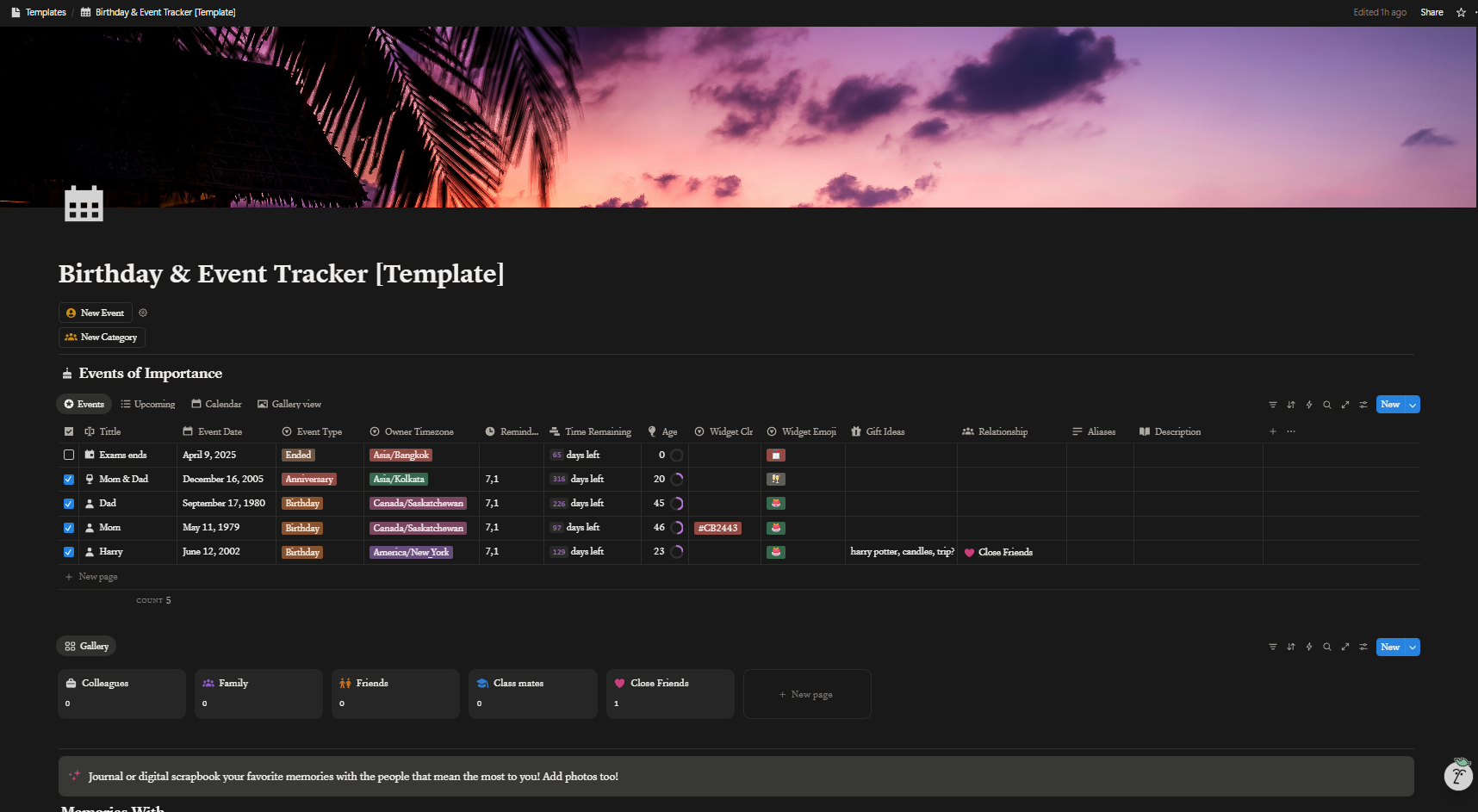
Template Link— Birthday & Event Tracker Dashboard [Template]
- Widget shows no data: verify the Web App URL and that the sheet tab matches
HARDCODED_SHEET. - Dates look wrong: ensure the feed returns dates in
YYYY-MM-DDand your Scriptable script parses them. - Colors missing: check
Widget Clrcolumn values (hex like #2980b9).
If you don’t want Google Calendar reminders or notification integration, you can use a much simpler version of the script that connects directly to the Notion API. This version fetches your events straight from Notion, with no Google Sheets or Apps Script required.
- No Google Calendar or Sheets needed
- Direct Notion API integration
- Faster setup for Notion users
See the Notion API Quickstart Guide for:
- How to set up a free Notion developer integration/token
- How to get your Notion database ID (data source ID)
- How to use the Notion-only Scriptable script
This is perfect if you only want to manage events in Notion and don’t need advanced notification/reminder features.