



Add2ABM is a macOS recovery-time utility script created by Inetum Poland that re-triggers Setup Assistant to allow an already configured Mac to be added to Apple Business Manager1 (ABM) or Apple School Manager2 (ASM) without erasing the disk.
It temporarily removes the .AppleSetupDone flag, as well as local user records on the Data volume, working around the limitations introduced in macOS Sonoma, forcing the system to present Setup Assistant on next boot. This allows the device to be (re)assigned in ABM or ASM for Automated Device Enrollment (ADE) workflows without erasing the disk.
The process is fully reversible: running the script again restores the original system state.
This tool is intended exclusively for system administrators, support engineers, or help desk personnel responsible for managed macOS environments.
It is used to:
- retroactively add a Mac to ABM1/ASM2 with Apple Configurator,
- enable Automated Device Enrollment (ADE) on an already configured Mac,
- avoid wiping a device due to data retention requirements.
Warning
End users should never run this script themselves. The entire procedure should be carried out by, or at least under the supervision of, IT/support staff. Improper use may lead to system misconfiguration. While no data is deleted and all changes are reversible, a full backup before use is of course recommended.
Caution
Do not use this script on a Mac with User Activation Lock enabled or one already added to ABM/ASM. Proceeding will inevitably lead to assignment failure which can put your data at risk.
In fact, if for whatever reason the assignment fails, do not use Shut Down button in the bottom right corner of the Setup Assistant. Doing so will reset the activation status of the device and will initiate Erase All Contents & Settings system wipe on next boot, even if you’d try to go straight to Recovery. Use Command+Q (⌘Q) and then Shut Down in modal window instead, or just hold the Power button to power off and potentially try again.
The script has additional checks to prevent putting your data at risk, but you’re the one in control.
ABM/ASM assignment error examples
Activation Lock:
Desc.  : Provisional Enrollment failed.
Sugg.  : The device failed to request configuration from the cloud.
Domain : DEPCloudConfigErrorDomain
Code.  : 0x80EF (33007)
  Domain : MCCloudConfigurationErrorDomain
  Code.  : 0x84D0 (34000)
Already assigned:
Desc.  : Provisional Enrollment failed.
Sugg.  : This device is already enrolled in the Device Enrollment Program.
Domain : DEPCloudConfigErrorDomain
Code.  : 0x80EF (33007)
  Domain : MCCloudConfigurationErrorDomain
  Code.  : 0x80FA (33018)
Network issue:
Desc.  : Transport could not connect.
Domain : Catalyst.error
Code.  : 0xCA (202)
  Desc.  : Broadcast primitives invalidated
  Domain : DeviceManagementTools.error
  Code.  : 0x1E (30)
    Desc.  : Client Disconnected
    Domain : DeviceManagementTools.error
    Code.  : 0x5B (91)
Caution
Do not proceed beyond the Select Your Country or Region screen when Setup Assistant appears after running Add2ABM. Proceeding further may result in:
- duplicate or conflicting configurations,
- unexpected behavior on an already configured system.
The sole purpose of re–triggering Setup Assistant is to allow ABM/ASM assignment, not to reconfigure the system.
Note
Re–triggering the Setup Assistant resets end user’s consent to macOS Software License Agreement (Terms and Conditions step). Add2ABM re–confirms it again in Restore mode.
- Apple silicon Mac or Intel Mac with T2 Security Chip
- Activation Lock disabled (at least temporarily)
- Access to macOS Recovery (make sure you have the Recovery Lock password, if set)
- Ability to unlock the Data volume using:
- SecureToken-enabled user password, or
- FileVault Personal Recovery Key
- Network connectivity (to download the script within macOS Recovery)
Run from macOS Recovery only:
- Boot into macOS Recovery
- Open Utilities → Terminal (or use ⌘⇧T)
- Execute the script from a trusted source. The following command provides the shortest command for convenient typing in Recovery Terminal:
sh <(curl -s add2abm.inetum.zone)or if you’re hosting it yourself:
sh <(curl -s script_hosting_fqdn/add2abm.sh)The script is fully interactive and prompts before making any changes.
Running the script from a logged–in macOS session is not supported.
Tip
For security reasons, before executing the script you can verify its checksum by running
curl -s add2abm.inetum.zone|md5
curl -s script_hosting_fqdn/add2abm|md5
or
curl -s add2abm.inetum.zone|sha256
curl -s script_hosting_fqdn/add2abm|sha256
You can find the latest script checksums in Releases.
See Add2ABM in action 🎬
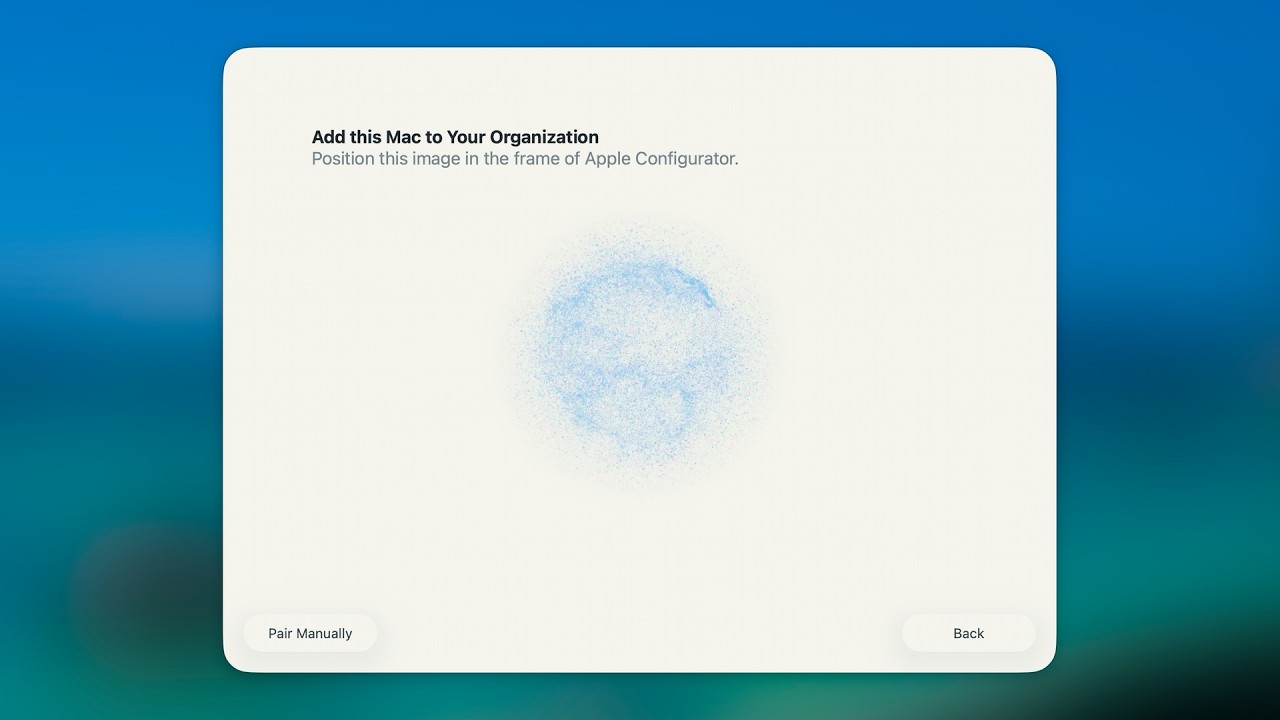
The script operates in two modes:
-
Backup mode (default):
- Backs up eligible local user records (
*.plist→*.bak) in/var/db/dslocal/nodes/Default/users/, - Removes
.AppleSetupDonefile located in/var/db/ - Performs a reboot to trigger Setup Assistant on next boot
- Backs up eligible local user records (
-
Restore mode (when backups exist):
- Restores user records (
*.bak→*.plist) - Recreates
.AppleSetupDone - Removes
.AppleSetupTermsOfServiceto re–confirm macOS SLA - Performs a reboot to return the system to normal operation
- Restores user records (
- Disable Activation Lock, if currently enabled
- Shut down Mac
- Hold Touch ID/power button to boot into Options (macOS Recovery)
- Authenticate as volume owner
- Connect to network (if not connected)
- Open Utilities → Terminal (or use ⌘⇧T)
- Execute the script to backup user records and reboot
- Unlock disk upon boot, if encrypted
- Proceed in Setup Assistant to Select Your Country or Region step
- Bring the iPhone running Apple Configurator in close proximity to the Mac
- Add the computer to the MDM server of choice in ABM/ASM
- Shut down Mac on success (Mac Added confirmation)
- Hold Touch ID/power button to boot into Options (macOS Recovery) once again
- Authenticate as volume owner
- Connect to network (if not connected)
- Open Utilities → Terminal (or use ⌘⇧T)
- Execute the script again to restore user records from backup and reboot
- Unlock disk upon boot, if encrypted
- Log in to the local user account
- Run
sudo profiles renew -type enrollment(local admin account context required) in Terminal to force Automated Device Enrollment workflow from your MDM
- Requires physical access
- Not suitable for unattended or automated execution
- Depends on Apple’s current Setup Assistant and ABM behavior
- Future macOS versions may affect functionality
If the script does not behave as expected, you can enable tracing to run it in a verbose mode for debugging:
sh -x <(curl -s add2abm.inetum.zone)or if you’re hosting it yourself:
sh -x <(curl -s script_hosting_fqdn/add2abm.sh)Before reporting issues, verify that:
- the script was run from macOS Recovery
- the Data volume was successfully unlocked
When reporting issues, include:
- Mac model and architecture
- macOS version
- What troubleshooting steps you’ve already taken
- Any relevant error messages or unexpected behavior observed
- Full Terminal output, if possible
Contributions are welcome! To contribute, create a fork of this repository, commit and push changes to a branch of your fork, and then submit a pull request. Your changes will be reviewed by a project maintainer.
Contributions don’t have to be code; we appreciate any help in answering issues.
Add2ABM was created by the Apple Business Unit at Inetum Polska Sp. z o.o.
Add2ABM is licensed under the Apache License, version 2.0.
Footnotes
-
To learn more about adding devices using Apple Configurator to Apple Business Manager, visit the Apple Business Manager User Guide. ↩ ↩2
-
To learn more about adding devices using Apple Configurator to Apple School Manager, visit the Apple School Manager User Guide. ↩ ↩2