




A custom Home Assistant integration that monitors cable modem signal quality, power levels, and error rates. Perfect for tracking your internet connection health and identifying potential issues before they cause problems.
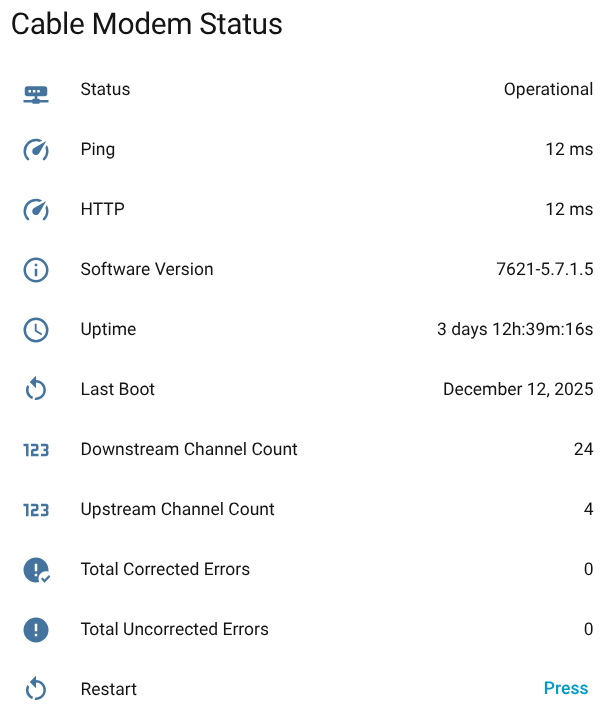
Monitor your cable modem's signal quality, errors, and connection health in real-time.
⭐ If you find this integration useful, please star this repo! It helps others discover the project and shows that the integration is actively used.
🤖 AI-Assisted Development: This project uses AI-assisted development (Claude) to accelerate implementation while maintaining human oversight for architecture and community decisions.
- Installation Guide
- Supported Modems
- Troubleshooting Guide
- Contributing Guide
- Development (for contributors)
New contributor? Start with the Getting Started Guide -- it covers environment setup, running tests, and your first commit in a single document.
Returning contributor? See the Contributing Guide for workflow, code style, and PR guidelines.
Architecture (v3.14): Two runtime pip packages in packages/ (Core + Catalog) plus a thin HA adapter in custom_components/. A third package — Catalog Tools — provides catalog authoring tools (HAR analysis, YAML generation, verification) for contributors and maintainers; it is never installed by HA. See CONTRIBUTING.md for details.
What it monitors:
- 📊 Signal Quality: Power levels, SNR, frequency for every channel
⚠️ Error Tracking: Corrected & uncorrected errors per channel- 🔌 Connection Health: Status, uptime, and last boot time
- 💓 Modem Health: Real-time ping and HTTP latency monitoring
- 📈 Trends: Full historical data for analysis and graphing
What it does:
- 🔄 Remote Control: Restart your modem from Home Assistant
- 🤖 Automation Ready: Trigger actions on signal degradation or errors
- 🔐 Privacy First: All local processing, automatic PII sanitization
- 🛡️ Security Focused: CodeQL scanned on every push, weekly schedule, and PR
- 🔌 Plug & Play: Easy UI configuration, no YAML editing needed
Track your cable modem's health with comprehensive dashboards and real-time monitoring:
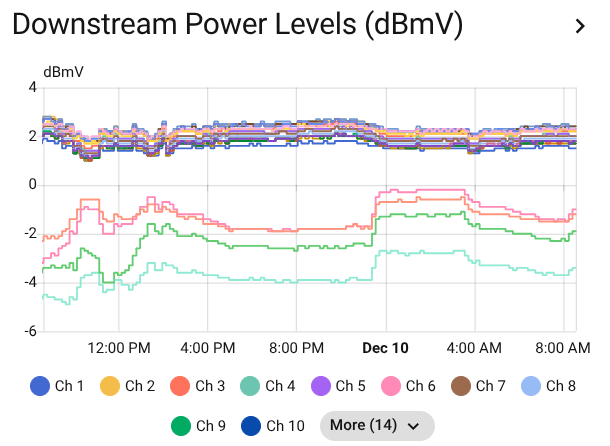
Real-time power level monitoring across all downstream channels
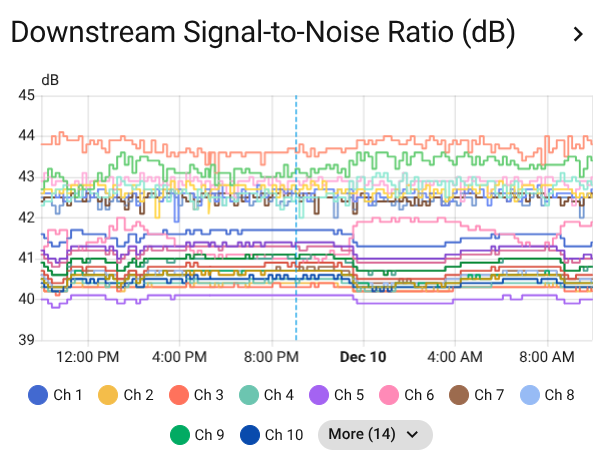
SNR tracking helps identify signal quality issues before they cause problems
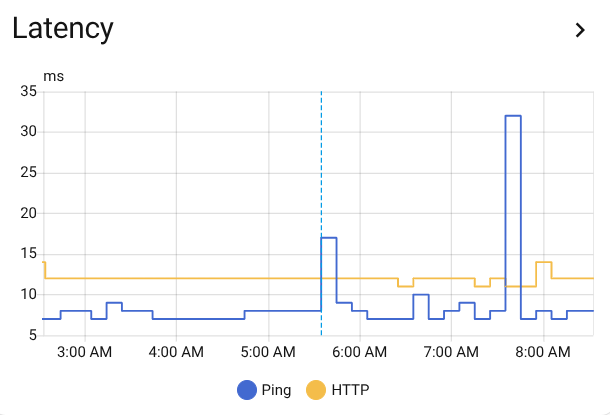
Ping and HTTP latency monitoring for real-time health assessment
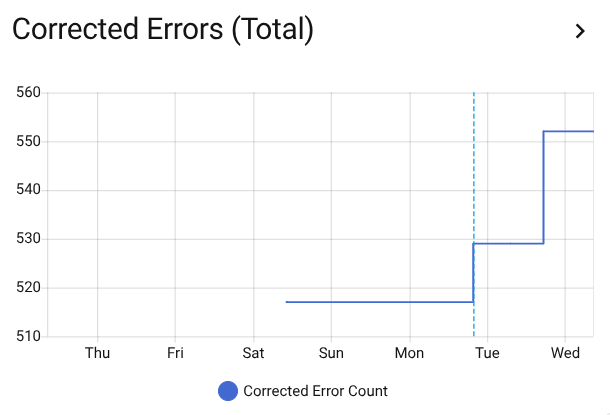
Track corrected errors over time to spot developing line issues
- Easy Setup: Configure via Home Assistant UI - no YAML editing required
- Comprehensive Channel Monitoring: Tracks all downstream and upstream channels
- Per-Channel Metrics:
- Power levels (dBmV)
- Signal-to-Noise Ratio (SNR in dB)
- Frequency (Hz)
- Corrected/Uncorrected errors
- Summary Sensors: Total corrected and uncorrected errors across all channels
- Unified Status: Single sensor showing operational state (Operational/Degraded/Not Locked/Unresponsive)
- System Information: Software version, uptime, channel counts, and last boot time
- Health Monitoring: Real-time modem health checks with:
- Ping latency monitoring
- HTTP response time tracking
- Automatic health status assessment
- Circuit breaker pattern for reliability
- Modem Control: Restart your modem directly from Home Assistant
- Automation-Friendly: Last boot time sensor with timestamp device class for reboot detection
- Consistent Entity Naming: All entities use
cable_modem_prefix for predictability - Historical Data: All metrics are stored for trend analysis
- Dashboard Ready: Create graphs and alerts based on signal quality
- Extensible: Plugin architecture makes adding new modem models easy
- Well Tested: comprehensive test coverage across Core, Catalog, Catalog Tools, and HA integration suites — see CI badge above for current pass status
- Type Safe: Full type hints, mypy and pyright validation
This integration supports modems from ARRIS, Compal, Hitron, Motorola, Netgear, SerComm, Technicolor, and Virgin Media. Compatibility varies based on firmware versions and ISP customizations.
View the Supported Modems List - Complete list with DOCSIS versions, ISP compatibility, verification status, and model timelines.
The catalog grows when contributors with hardware step up. Two paths:
- Modem not listed? Use har-capture to record your modem's web interface, then file a request. See the Modem Request Guide for the user-facing walkthrough.
- Want to help more? If you have AI access, you can analyze captures and propose catalog entries yourself. See AI-Assisted Catalog Contribution.
Modem listed as ⏳ Awaiting? Report it working to help verify support.
Don't have HACS? Follow the HACS installation guide first.
- Open HACS from the sidebar
- Search for "Cable Modem Monitor"
- Click Download
- Restart Home Assistant
Beta releases install manually — there's no auto-update path on betas. Each beta is a deliberate per-version install.
- In HACS, open Cable Modem Monitor.
- Click the ⋯ menu → Redownload.
- Click Need a different version?.
- Pick the desired beta from the Release dropdown.
- Click Download and restart Home Assistant.
To return to stable: repeat the steps and pick the latest stable release.
- Go to Settings → Devices & Services → Add Integration
- Search for Cable Modem Monitor
- Enter your modem's IP address (typically
192.168.100.1) - Select your modem manufacturer, then pick your specific model from the catalog
- Choose Channel Number mode (recommended — stable entity IDs across reboots) or Channel ID mode
After setup, configure via Settings → Devices & Services → Cable Modem Monitor → Configure:
- Host: Update modem IP / URL
- Credentials: Update username/password if your modem requires authentication
- Polling Interval: How often to fetch full modem status (30 seconds – 24 hours, default: 10 minutes)
- Health Check Interval: How often to run lightweight reachability probes (default depends on probe support: 30 seconds with ICMP/HEAD, 60 seconds with HTTP-GET only)
Channel Identity and Modem Model are install-time choices. To change either, remove the integration and add it again.
All sensors use the cable_modem_ prefix for consistent entity naming and easy identification.
Entity Naming Pattern:
System sensors: sensor.cable_modem_{metric} (e.g., sensor.cable_modem_status).
Channel sensor naming depends on the Channel Identity mode you picked at setup:
- Channel Number mode (recommended default — stable across reboots):
sensor.cable_modem_{direction}_ch_{number}_{metric}- Example:
sensor.cable_modem_ds_ch_1_power - Example:
sensor.cable_modem_us_ch_3_frequency
- Example:
- Channel ID mode (DOCSIS DCID-based):
sensor.cable_modem_{direction}_{type}_ch_{id}_{metric}- Example:
sensor.cable_modem_ds_qam_ch_1_power - Example:
sensor.cable_modem_us_atdma_ch_3_frequency - DOCSIS 3.1 modems also have OFDM/OFDMA channels:
sensor.cable_modem_ds_ofdm_ch_1_power
- Example:
Channel Identity is set when you add the integration. To switch, remove and re-add it in the other mode, then call the convert_channel_identity service to rename existing recorder history to match.
sensor.cable_modem_status: Unified pass/fail status combining connection, health, and DOCSIS lock state- Operational: All good - data parsed, DOCSIS locked, reachable
- ICMP Blocked: HTTP works but ping fails (check parser
supports_icmpsetting) - Partial Lock: Some downstream channels not locked
- Not Locked: DOCSIS not locked to ISP
- Parser Error: Modem reachable but data couldn't be parsed
- Unresponsive: Can't reach modem via HTTP
sensor.cable_modem_software_version: Modem firmware/software versionsensor.cable_modem_system_uptime: How long the modem has been runningsensor.cable_modem_last_boot_time: When the modem last rebooted (timestamp device class)sensor.cable_modem_ds_channel_count: Number of active downstream channelssensor.cable_modem_us_channel_count: Number of active upstream channels
sensor.cable_modem_ping_latency: Ping response time in millisecondssensor.cable_modem_http_latency: HTTP response time in milliseconds
sensor.cable_modem_total_corrected_errors: Total corrected errors across all downstream channelssensor.cable_modem_total_uncorrected_errors: Total uncorrected errors across all downstream channels
Replace {type} with channel type (qam, ofdm) and X with the channel number:
sensor.cable_modem_ds_{type}_ch_X_power: Power level in dBmVsensor.cable_modem_ds_{type}_ch_X_snr: Signal-to-Noise Ratio in dBsensor.cable_modem_ds_{type}_ch_X_frequency: Channel frequency in Hzsensor.cable_modem_ds_{type}_ch_X_corrected: Corrected errorssensor.cable_modem_ds_{type}_ch_X_uncorrected: Uncorrected errors
Replace {type} with channel type (atdma, ofdma) and X with the channel number:
sensor.cable_modem_us_{type}_ch_X_power: Transmit power level in dBmVsensor.cable_modem_us_{type}_ch_X_frequency: Channel frequency in Hz
The integration registers three buttons under the modem device:
- Restart Modem: Reboots the modem remotely (requires modem credentials)
- Update Modem Data: Triggers an immediate poll outside the regular cadence
- Reset Entities: Clears entity registry entries for this modem (useful after a modem swap or schema migration)
cable_modem_monitor.generate_dashboard: Generates a Lovelace dashboard YAML tailored to your modem's channel layout. Configurable: which graphs to include (status card, downstream/upstream power/SNR/frequency, errors, latency),graph_hourswindow (1–168), and short-title mode.cable_modem_monitor.request_refresh: Triggers an immediate data poll for the selected device.cable_modem_monitor.request_health_check: Runs an immediate health probe (ICMP / TCP / HTTP) outside the regular cadence.cable_modem_monitor.convert_channel_identity: Renames recorder statistics from the previous Channel Identity mode to the current one, so historical graphs survive a remove-and-re-add in the other mode. Modem must be online.
- Ideal range: -7 to +7 dBmV
- Acceptable: -15 to +15 dBmV
- Poor: Below -15 or above +15 dBmV
- Excellent: Above 40 dB
- Good: 33-40 dB
- Acceptable: 25-33 dB
- Poor: Below 25 dB
- Ideal range: 35-50 dBmV
- Acceptable: 30-55 dBmV
- Poor: Below 30 or above 55 dBmV
- Corrected errors: Normal in small amounts; modem can fix these
- Uncorrected errors: Indicate data loss; any sustained increase is concerning
- Monitor trends: Sudden increases may indicate line issues
Ready-to-use dashboard and automation examples are available in the Examples Guide.
Includes:
- Dashboard generator service — auto-generates Lovelace YAML tailored to your modem's channels
- Complete manual dashboard YAML for monitoring all channels
- Automations for error alerts, SNR warnings, and auto-restart
- Last boot time display format options
📖 See the Troubleshooting Guide for solutions to common issues including connection problems, missing sensors, and duplicate entities.
Contributions are welcome! If you have:
- Support for additional modem models
- Bug fixes
- Feature improvements
Please see the Contributing Guide for details on how to add support for your modem, run tests, and submit changes.
- 100% Local: All data stays on your Home Assistant instance - no cloud services
- Read-Only: Only reads data from your modem (never modifies configuration)
- PII Sanitization: Automatic removal of sensitive data from diagnostics
- IP addresses, MAC addresses, serial numbers automatically redacted
- Safe to share diagnostic files for support
- Uses har-capture for secure HAR file sanitization
- Secure Credentials: Stored in Home Assistant's encrypted storage
- CodeQL Scanning: Automated security analysis on every push, weekly schedule, and pull request.
- Standard CodeQL Python suite: 100+ security queries covering OWASP Top 10 and broad CWE coverage — command injection, hardcoded credentials, SSL/TLS misuse, path traversal, XXE, and more.
- Custom queries: One project-specific query at
cable-modem-monitor-ql/queries/no_timeout.qlflags HTTP requests without explicit timeouts, which would otherwise hang the integration on unreachable modems.
- Security Documentation: See CodeQL Testing Guide for details
- Vulnerability Reporting: See SECURITY.md for responsible disclosure
- HTTP Basic Authentication
- Form-based authentication
- HNAP/SOAP authentication
- No authentication (for open modems)
MIT License - see LICENSE file for details
- Changelog - Version history and release notes
- Contributing Guide - How to contribute code or add modem support
- Troubleshooting Guide - Common issues and solutions
- Examples - Dashboard and automation YAML
- Modem Request Guide - Help add support for your modem
- har-capture - Zero-dependency Python library for sanitizing HAR files. Used by this integration to safely capture diagnostic data from cable modems without exposing passwords or network credentials.
Solent Labs™ is not affiliated with Arris, Motorola, Netgear, or any ISP. All product names are trademarks of their respective owners. Use this software at your own risk.